How to create a Tesla Paint Shop wrap
Choose a template, add your artwork and export a free PNG for your Tesla’s digital vehicle display.
Open the editorChoose your model and version
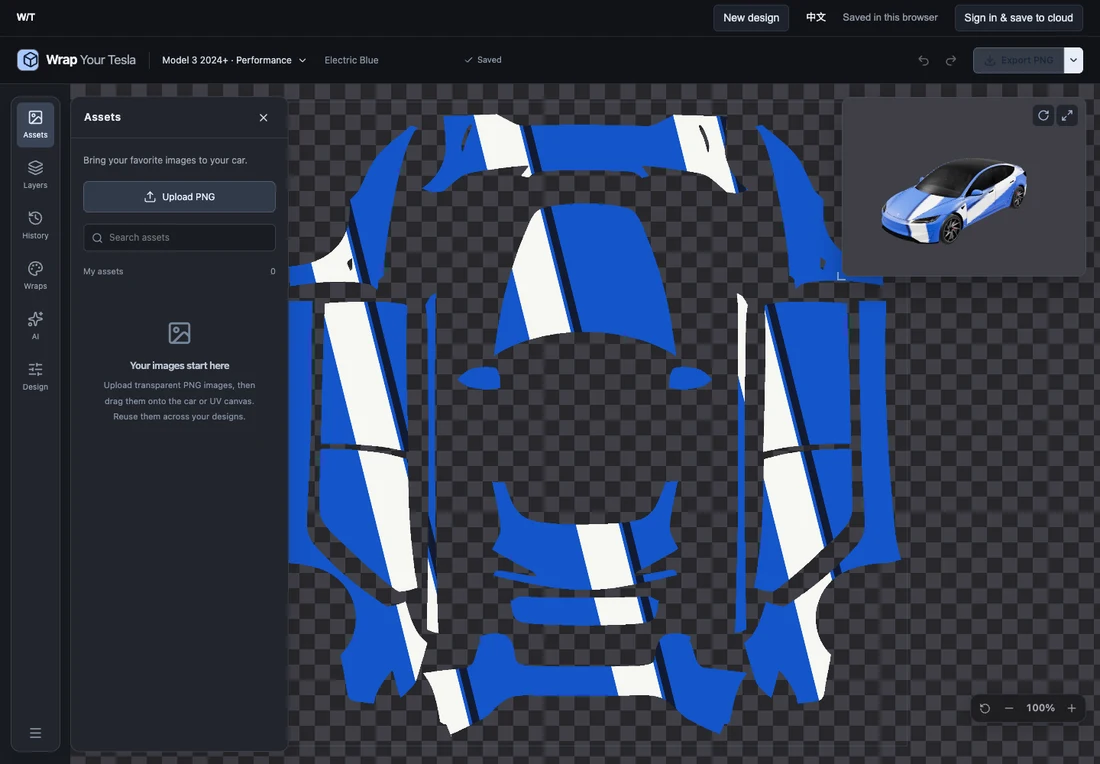
Click Start designing and choose your Tesla’s family, year and version. The editor opens with a UV workspace and a 3D preview. Each design belongs to one vehicle profile; start a new design to use another model.
Build your design, layer by layer
Upload a PNG in Assets, then place it on the UV canvas or paintable body. Use Design to add text, brushes, shapes and paths. Select a layer to move, resize, rotate or mirror it. In Layers you can rename, hide, lock and reorder your artwork. Undo and History let you return to earlier edits.
Explore with AI
Sign in, add credits, and open AI. Describe your idea or choose a reference image. One credit is reserved when you submit, then charged only when the result has been added to your design. Failed or canceled generations release the credit. Previous layers remain in History and are retained as hidden layers when the new result is applied.
Look from every angle
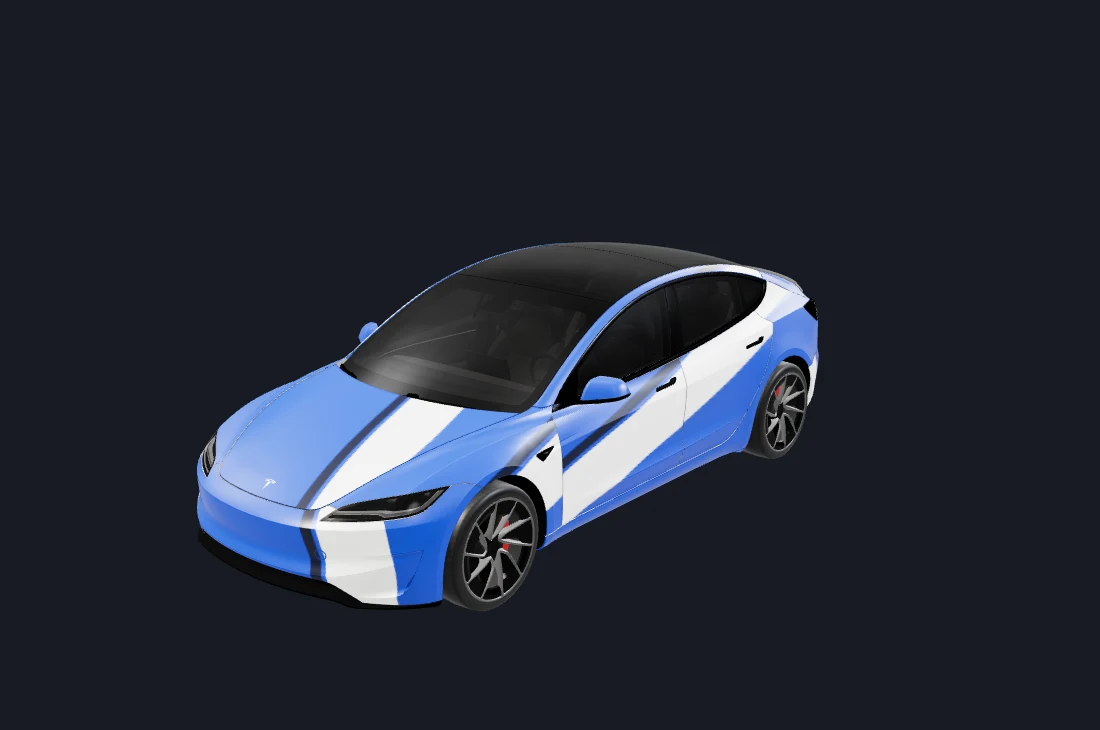
Drag the 3D model to inspect the sides, hood and rear. Swap the main and secondary stages to edit directly in 3D. The secondary stage is for viewing. Check seams, text direction and placement before exporting.
Save and export
Guest work is saved in this browser. Sign in and choose Save online to transfer your draft into your private account. My designs and the editor show the same project. Export the Paint Shop PNG to use on a compatible Tesla; exporting does not spend AI credits.